





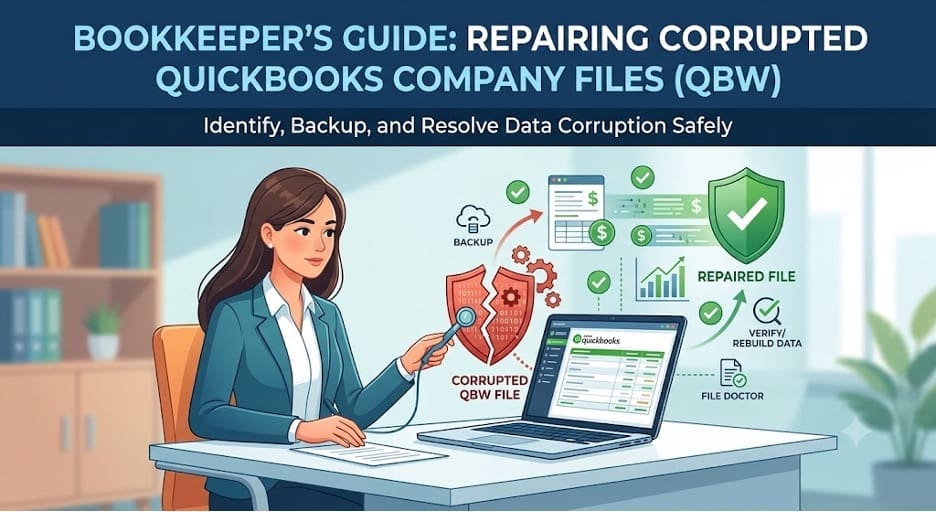
As a bookkeeper, if you are unable to open your client’s QuickBooks (QBW) file or encounter random errors while accessing the file, you have to first determine if the problem is caused by data corruption. Since you are managing critical financial data, one wrong click could cause irreparable damage. In this article, we will show you exactly how to manage a corrupt QuickBooks company file. We will cover how to confirm corruption in a QBW file, perform basic checks on your own system, and repair QuickBooks company file issues safely.
How to Identify if a Client’s QuickBooks File is Actually Corrupted?
Before assuming the .QBW file is corrupted, check for simple setup or access problems first. If the file is actually damaged, QuickBooks will usually show error codes, give a false message to update the software, or simply refuse to open.
You can also do the following:
- Verify that the received company file size matches the client’s original file size.
- Ensure you are opening the file in the correct QuickBooks version. Opening a file from a newer version will display a clear version error rather than corruption warning.
- Make sure the file extension is correct (i.e., .qbw).
- Ensure you have Windows permissions to copy and access the file. Copying a file to a new machine can sometimes block access.
You can run the Verify Data utility to confirm whether the .QBW file is corrupted. It scans your company file for integrity errors or data damage. To run the utility, follow these steps:
- Go to Window and then click Close All.
- Click File and then select Utilities.
- Choose Verify Data.
The utility will start verifying the data in the file. If the data is clean, it displays: “QuickBooks detected no problems with your data.” Otherwise, it shows an error message like: “Data damage was found in the file. Proceed to rebuild your company data to fix it.”
Back up the Original Company File before Troubleshooting
You should never run repair tools on your original copy to prevent data damage or data deletion. Before you try to fix anything, the first step is to create a backup of the company file exactly as received and save it in a separate folder. This ensures that you always have a file copy to hand over to a QuickBooks data specialist, if needed.
Troubleshooting Methods to Repair QuickBooks Company File
Try these methods to repair and restore a corrupt QBW file.
Method 1 – Restore Company File from Backup
If your client has given you a readable backup file, you can easily restore that file and replace it with the corrupted one. Simply open QuickBooks and use the Open or Restore Company option to restore the company file from backup. Here’s how:
- In your QuickBooks application, go to File menu and click Open or Restore Company.
- Click on the option that says Restore a backup copy and then click Next.
- Click the option labeled Local Backup and then click
- Browse to the backup (.qbb) file on your system.
- Next, choose a location to save the restored company file and then click Open.
- Click
You can also use the Auto Data Recovery tool to restore the data from QBW file. This tool is available in QuickBooks Pro, Premier, or Enterprise Solutions. It requires the latest Transaction Log (.TLG) file and a copy of the QBW file to restore the recent transactions. Here are the steps to recover the recent transactions in the QuickBooks company file:
- First, create a new folder on your Windows desktop, e.g. QBTest17.
- Next, go to your company file folder and search for the .tlg file. This file is same as the company file.
- Once you find the file, copy the Transaction log (.TLG) file from your company file folder and paste it into the QBTest17 folder.
- Next, open the QuickBooksAutoDataRecoveryfolder in the same company file folder.
- Next, copy and paste the .QBW.adrfile to the newly created QBTest17
- The new folder now contains both .TLG and .QBW.adr files. Right-click on the QBW.adr file, select Rename, and delete the .adr extension.
Method 2 – Rebuild the QuickBooks Company File
You can use Rebuild Data tool to repair corrupt QBW file. It is a built-in tool in your QuickBooks application. It automatically resolves minor company file issues. To use this tool, follow these steps:
- Go to the File menu, click Utilities and select Rebuild Data.
- The QuickBooks Information window is displayed. Select OK. Follow the onscreen steps to create the backup.
- Let the tool repair your file. When the tool finishes, select OK.
After this, you can run the Verify Data tool to check for any remaining issues in the file.
Method 3 – Use QuickBooks File Doctor Tool
Note: This method requires QuickBooks administrator credentials to repair company file. If you do not have them, you will need to request these credentials from your client.
If the Rebuild Data tool fails to repair the company file, then you can use the File Doctor tool of the QuickBooks Tool hub. It is recommended by Intuit to repair company files. To use this tool, follow the steps below:
- Download, install, and launch the recent version (1.6.0.8) of QuickBooks Tool Hub.
- In Tool hub, click Company File Issues.
- Click Run QuickBooks File Doctor
- In the QuickBooks File Doctor window, click on the problematic company file from the dropdown menu.
- Click Check your file and then click
- Enter the QuickBooks admin credentials and then click
Wait for a few minutes till the scan is complete. Then, launch QuickBooks and try to open the company file.
Note: The QuickBooks File Doctor tool may fail to respond if the file is severely corrupted or larger than 2GB.
Method 4 – Use a Professional QuickBooks Repair Tool
If the QuickBooks File Doctor tool has stopped working or failed to respond, this indicates the size of the QBW file is large or it is severely corrupted. In such a case, you can use a professional QuickBooks repair tool, like Stellar Repair for QuickBooks. It can repair QBW files without a backup file and without any file size restrictions. Also, it restores all the data from the damaged QBW file with complete precision. The tool can help resolve corruption-related errors, including H series and 6000 series errors. You can even see the preview of your repaired data in the company in the free trial of this tool.
To Conclude
If your QuickBooks company file gets damaged, inaccessible, or corrupted, you can repair it using the above methods. If you have a backup file, then you can restore it or use QuickBooks’ Auto Recovery feature. If you don’t have a backup, then use a reliable QuickBooks recovery tool, like Stellar Repair for QuickBooks. It can fix QBW file corruption without needing QuickBooks admin credentials. It also helps you preview recoverable data, like company, customer, and employee data, before saving.


