

Is Remo Recover the Best Data Recovery Software? Let’s Find out
In this article we review the recently released data recovery software by Remo Software, Remo Recover 6.0. The software is highly regarded for its exclusive features and high success rate of recovery without making users spend hours in front of their computer. Let us try Remo Recover Windows in various data loss scenarios to see its performance and find out whether Remo Recover 6.0 is the best data recovery software out there.
Recovery Scenarios to test Remo Recover 6.0:
Case Scenario 1: Recover Deleted files from Desktop
Case Scenario 2: Recover files from Emptied Recycle Bin
Case Scenario 3: Recover Lost files from Formatted Hard Drive
Case Scenario 1: Recover Deleted files from Desktop
In this scenario, we deleted files from Desktop of Windows computer and tried to recover deleted files using Remo Recover Windows 6.0. Follow the steps mentioned below to recover deleted files from desktop:
- Launch Remo Recover Windows on your computer, from the home screen click on Desktop folder to recover the deleted files that are deleted from Desktop and click on Scan.

- Software initiated Quick Scan to look for deleted files from the desktop, you can click on Dynamic Recovery View to look at the recovery process.
- In the Dynamic Recovery View you can look for deleted files from Desktop, in the deleted files folder. You can save the files without waiting for the scan process to be completed which is a big plus and not many tools can do this.
- Preview the files by double clicking on any file you want to recover and if you are satisfied with the recovery process you can activate the software.
- Click on Recover and Save the files on to desired location.
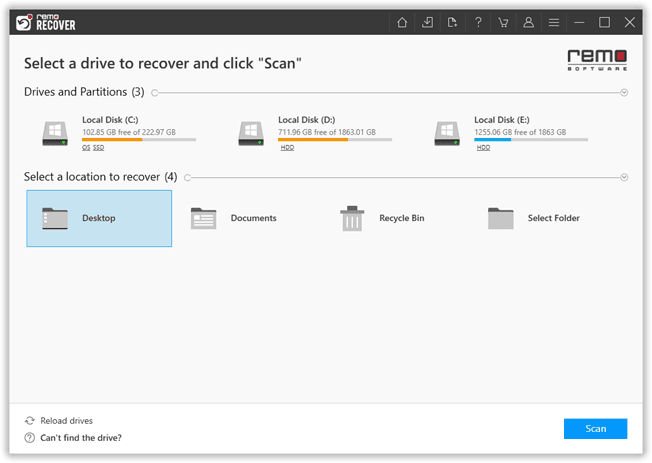
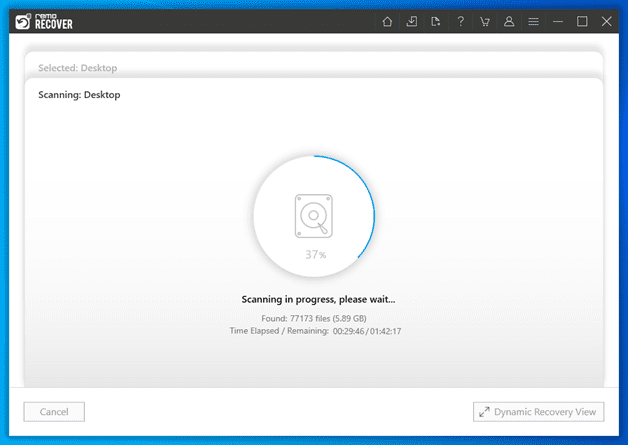
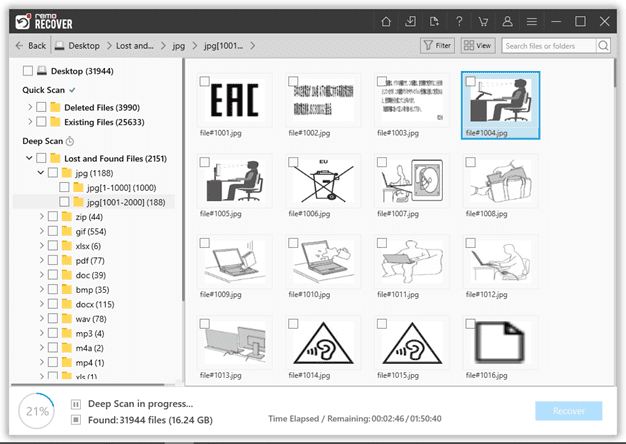
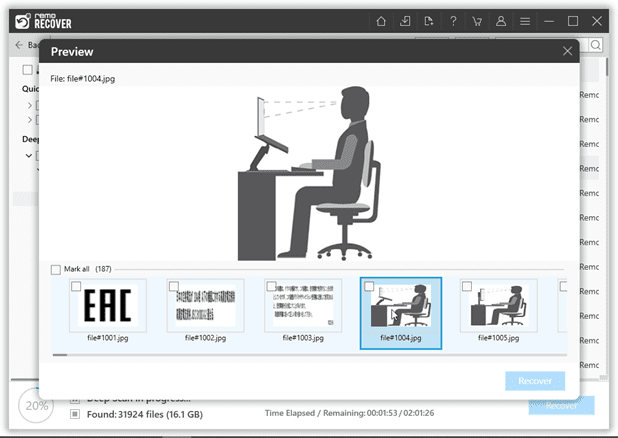
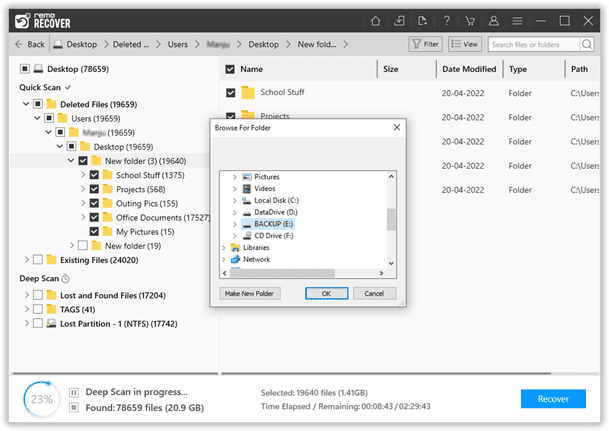
The software did a great job at recovering files I was trying to restore from the desktop. A big surprise was when the software automatically initiated a deep scan and recovered a lot more files which I wasn’t looking for. This was a big plus along with the time I saved by not waiting for a deep scan to complete in recovering the files I was looking for.
Remo Recover was quick and did the job in a very short span of time without any hurdles. Now lets go ahead and recover files by emptying the Recycle Bin.
Case Scenario 2: Recover files from Emptied Recycle Bin
To begin this process, I have emptied the Recycle Bin in a Windows 11 computer and installed Remo Recover Windows. Now follow the steps mentioned below to recover emptied Recycle Bin:
- Launch Remo Recover Windows on your computer, from the home screen click on Recycle Bin and hit the Scan button.
- The software starts scanning the bin folder to retrieve missing files. Click on the Dynamic Recovery View button to quickly view and recover files without having to wait till the entire scan gets complete.
- Once the scan is complete, the tool will display a list of all the recovered files from the Recycle Bin.
- Double click on any file in order to preview it.
- Once you are satisfied with the results. Select the files that you want to recover and also decide on a location where you want to save the recovered files.
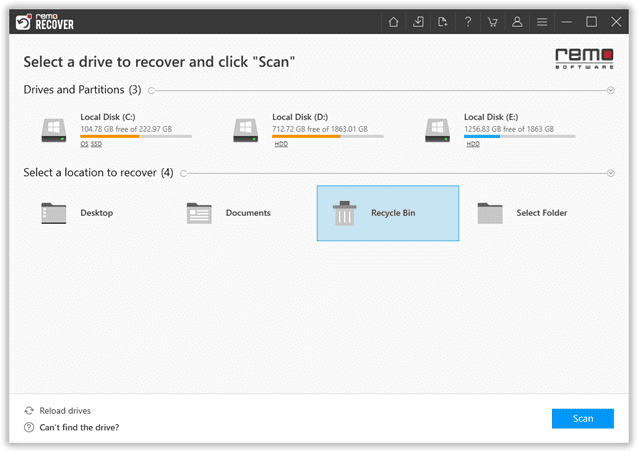
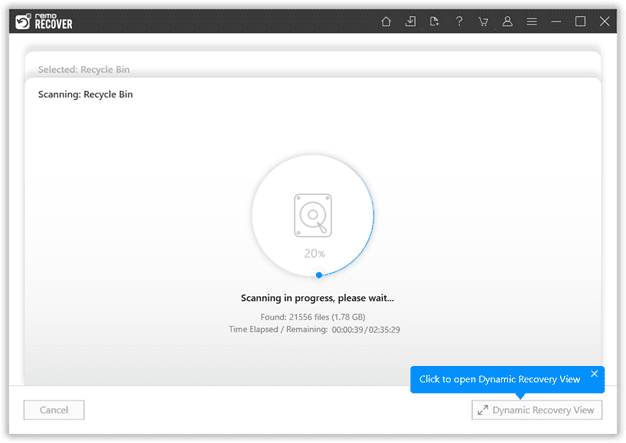
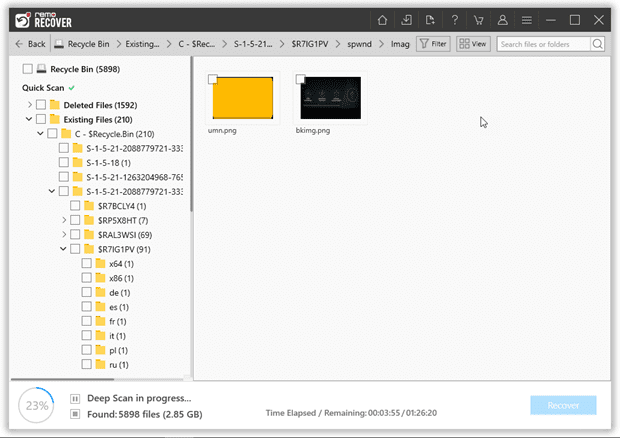
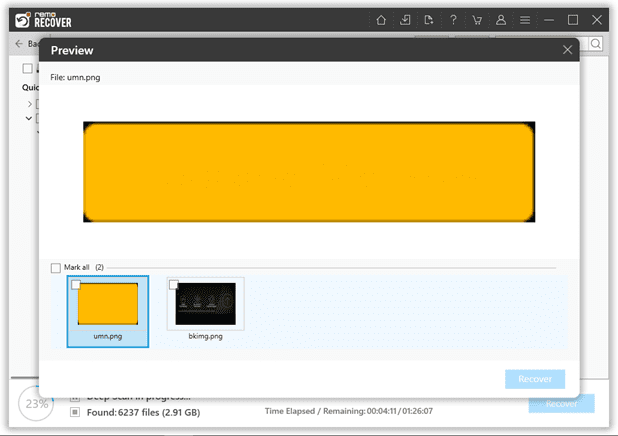
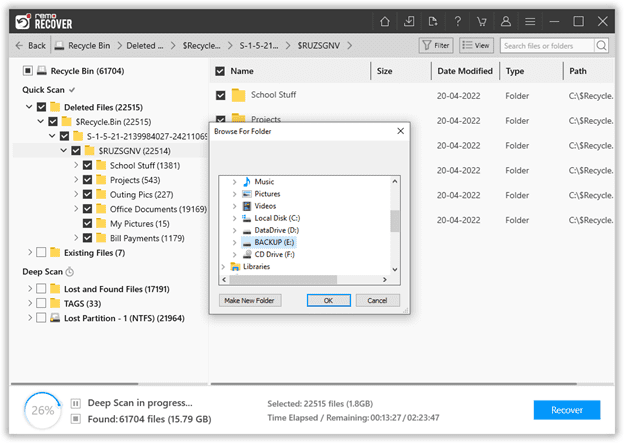
The tool performed quite well. All of my files lost after emptying the Recycle Bin were recovered easily.
The tool has so far proved to be a fantastic choice when it comes to recovering files from desktop and Recycle Bin.
Can the software recover files from formatted hard drives is one question that needs to be answered.
Case Scenario 3: Recover Lost files from Formatted Hard Drive
This was the ultimate test. Formatting any hard drive will lead to permanent loss of data. Here I am formatting the hard drive of
Remo Recover is one of the best tools that is renowned to recover data from any formatted hard disk. Well it’s time to test it out.
Make sure no new data or files are saved on the drive. Which leads to data over-writing, where data recovery becomes quite impossible.
- Connect your formatted hard disk to the system.
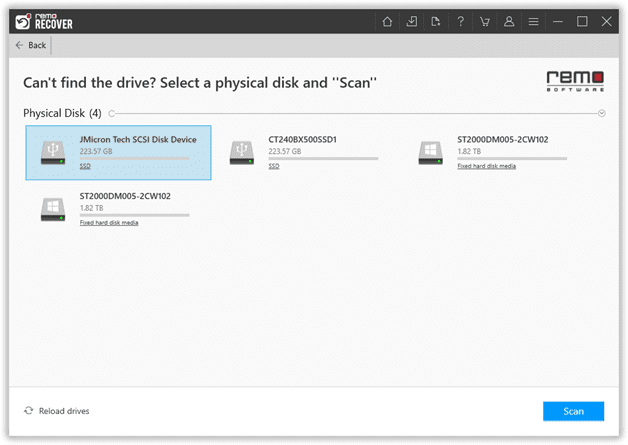
- Launch the tool, the tool will list all the drives and folders from where you can recover data.
- If you didn’t find the formatted drive, click on the Can’t find the drive? Option.
The option thoroughly scans the system and identifies all the connected devices.
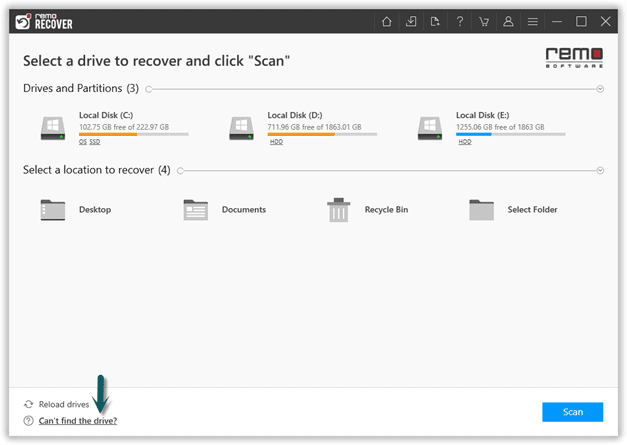
- Select the hard drive which you have formatted and hit the Scan button.
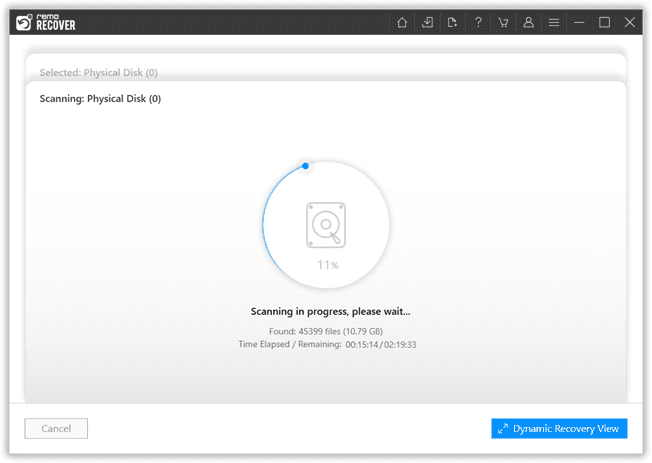
- Once the scanning process starts the algorithms will dive deeply to locate and identify the files that were formatted.
- The Dynamic Recovery View option lets you view and recover files while the scan is in progress.
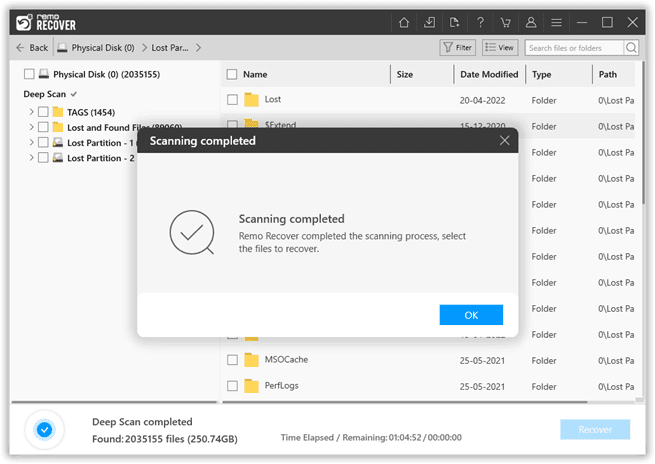
- The tool will list all the recovered files from the formatted hard drive on your screen.
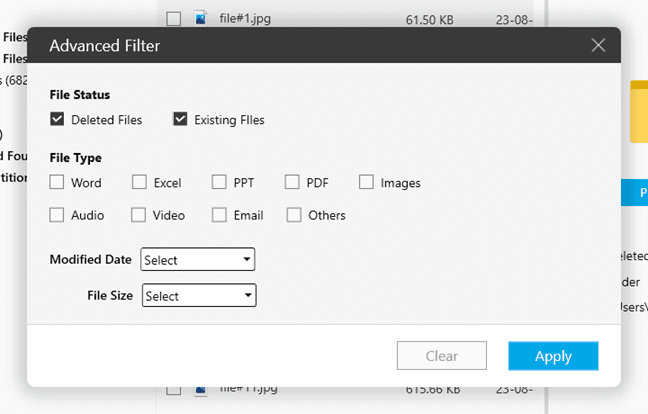
- Make use of the Filter option to sort the files based on the files types, file status, and file size.
- Double-click on the recovered files to preview them.
- Select all files that you want to recover and also select a location where you want to save the recovered files.
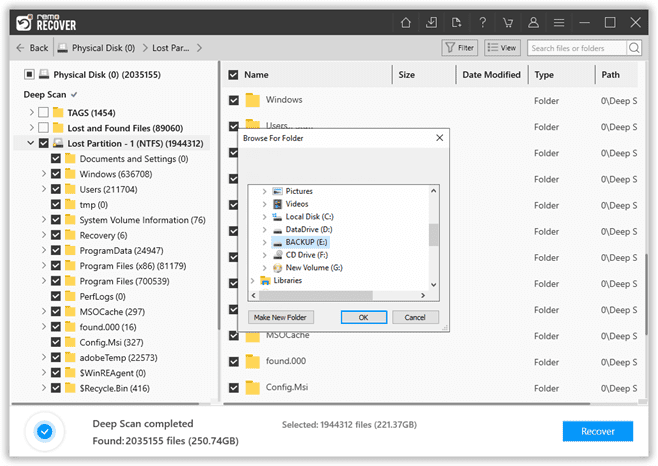
Surprisingly, Remo Recover 6.0 has safely recovered all files that were formatted.
Remo Recover 6.0 is jam-packed with some powerful features here are some of the standout features.
What Makes Remo Recover 6.0 the Best Data Recovery Software?
- Simple User Interface: The super user-friendly interface is extremely intuitive, so whether you are a novice user or a tech geek the simple interface is something you will love.
- Customize Recovery according to your Data Recovery Need: The tool can recover files from any storage device or folders.The tool lets you decide what files you want to recover and from what folder/device. The option to select a particular folder such as Recycle Bin, Desktop, Documents folder etc.
- Automated Dual Scan: The tool is built with dual scan technologies. Quick Scan and Deep Scan.
Deep scan does a sector level scan to fetch the data that was buried deep inside the drive. Deep Scan makes sure no stone is left unturned when it comes to data recovery.
- Dynamic Recovery Process:
Depending upon the size of your files, the scanning process might take hours to complete. The Dynamic Recover process comes in handy during these times. You don’t have to wait till the completion of the entire scan. A data tree gets automatically generated and expands as and when the tool recovers more files. I personally found the option extremely helpful. Viewing the recovered files and saving them even before completion of the scanning process is just something new and engaging.
- Find Files Easily with Sorting, Filtering, and Searching: The Advanced Filter option lets you effortlessly sort for the files based on file types, with the search option you can search for files based on various factors. For example if you want to recover music files you can run the filter option to find files based on genre, name of the music files, name of the singer, etc.
This lets you find all your files effortlessly without bringing in any clutter.
- Recover from where you left it:
Imagine a situation where the scan took hours to complete and all of a sudden there’s power cut or due to any other reason your system was shut down unexpectedly. In such situations you will have to rescan the entire drive all over again. The option to save the recovery session will help you save all the progress. Once you save your recovery session, there’s no need for you to rescan the drive.
Additionally,
The augmented preview features lets you have a quick glance at all the recovered files. The preview option is one of the coolest features. Imagine you have tons of data and you don’t exactly know what files have been recovered and what files were unrecovered. The preview option lets you view images, audio files, video files, text files, even PDF and Office files (word,PPT, excel).
Moreover, the tool provides unlimited data recovery options so that you don’t have to worry about the size and scale of your data. All in all Remo is hands down one of the best tools that can be trusted when it comes to recovering data. The tool has effortlessly recovered files from Desktop, Recycle Bin, and formatted Hard drive.
Features like Advanced Filter option and Dynamic Recovery View make data recovery experience extremely fun and moreover there support team was also readily available to assist you in the data recovery process.
